Editor Pane
The notebook editor is where you write and execute Python3, Scala, or SQL code interactively. Open it by clicking a notebook Name on the Notebooks list. The top bar spans two rows: the first carries the Spark session toggle, the language logo, Spark Logs and the cluster chip, and the second carries export, clear-outputs, save, Run All and the kernel controls. Three panels hang off the left icon rail, five off the right, and the cell canvas fills everything in between.
Route: /tenant/<tenantId>/workspace/<workspaceId>/notebook/<notebookId>
The breadcrumb reads Workspaces > <workspace> > Notebooks > <notebook name>, followed by an Active chip.
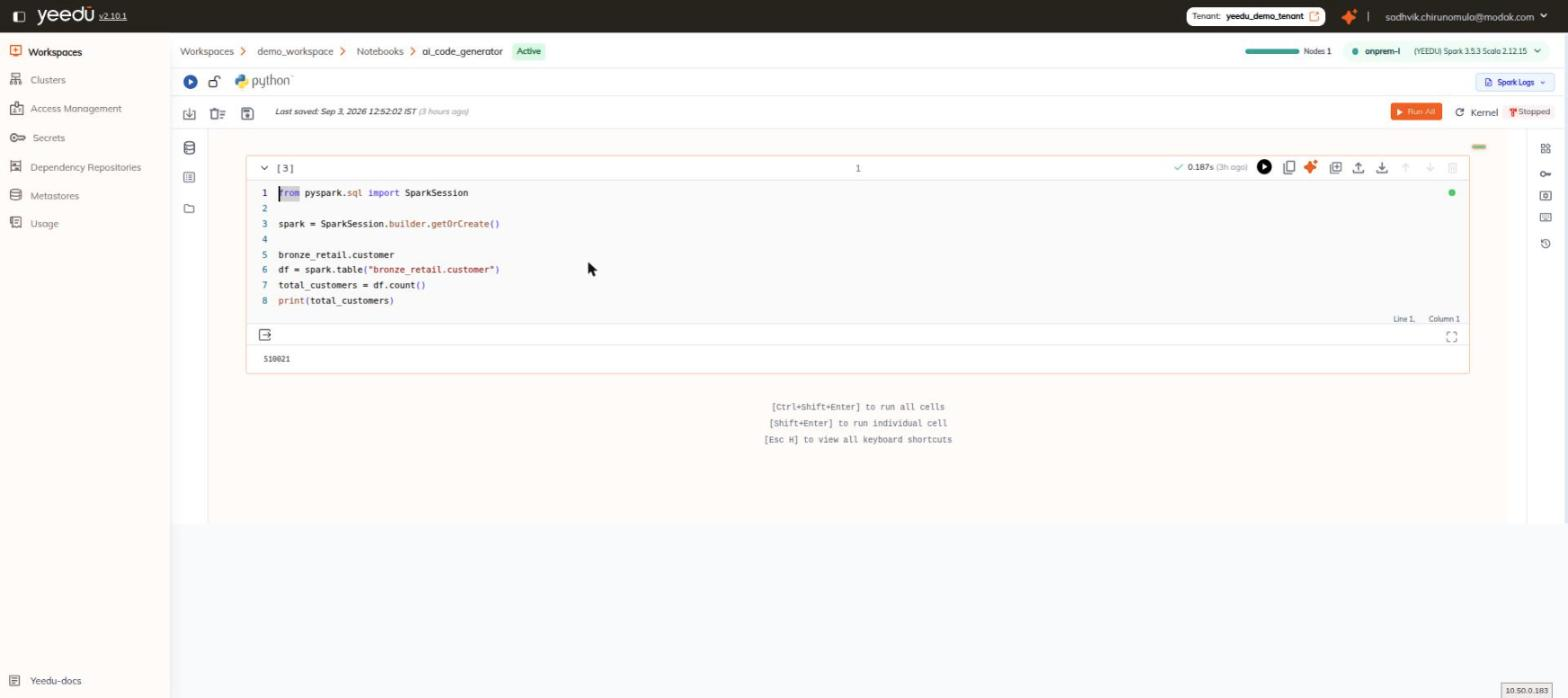
The screen is organised into four regions:
- A two-row top bar.
- A left icon rail that opens browsing panels.
- The cell canvas in the middle.
- A right icon rail that opens configuration and history panels.
Top Bar
Row 1
| Control | Behaviour |
|---|---|
| Session toggle (▶) | Starts and stops the Spark session. Its tooltip reads Spark: STOPPED (Status of the spark session) and Start / Stop spark session here. |
| Language logo | The notebook language, shown as its language icon (for example python). |
| Spark Logs | Tooltip View Spark application logs. See Spark Logs. |
| Cluster chip (far right) | Shows a Nodes <n> bar, the cluster name, the runtime string (for example (YEEDU) Spark 3.5.3 Scala 2.12.15), and a chevron that opens the cluster attach dropdown. |
Row 2
| Control | Tooltip / behaviour |
|---|---|
| Download icon | Export notebook |
| Trash icon | Clear All Outputs |
| Save icon | Save Notebook |
Last saved: <timestamp> (<relative>) | The auto-save indicator. See Auto-Save. |
| Run All (orange) | Runs every cell in the notebook. |
| Kernel (⟳) | Restart Kernel |
| Kernel state badge | The current kernel state, for example Stopped. |
Left Icon Rail
Three navigation panels, top to bottom:
| Tooltip | What it opens |
|---|---|
| Catalog Explorer | The metastore browser. See Schema Explorer. |
| All Notebooks | The notebook switcher. See All Notebooks Panel. |
| Files | The workspace file tree. See Files Panel. |
Right Icon Rail
Five configuration and history panels, top to bottom:
| Tooltip | What it opens |
|---|---|
| Widgets | The parameter strip. See Widgets Panel. |
| Secrets | Environment-variable and metastore secrets. See Notebook Secrets. |
| Advanced Options | Notebook-level Spark settings. See Advanced Options. |
| Keyboard Shortcuts | The shortcut reference. See Keyboard Shortcuts. |
| Notebook Run History | Past runs of this notebook. See Notebook Runs. |
Cell Canvas
Inserting Cells
Hover the gap between two cells to reveal the inline insertion buttons + Code and + Text. They aren't visible until you hover. + Text inserts a Markdown cell.
Cell Header
From left to right, the cell header holds:
- The collapse chevron, tooltip
Collapse Cell. - The execution counter, for example
[ 3 ]. - The cell index.
- A status and timing chip whose tooltip reads
Execution Time: 0.187s,Run By: <email>, andLast Run: <timestamp>.
Cell Toolbar
Nine icons, in this order:
| # | Action |
|---|---|
| 1 | Run cell |
| 2 | Copy Code |
| 3 | Ask AI Assistant |
| 4 | Clone Cell |
| 5 | Insert Cell Above |
| 6 | Insert Cell Below |
| 7 | Move Up |
| 8 | Move Down |
| 9 | Delete Cell |
Ask AI Assistant opens the inline prompt bar we documented in LLM Model Selection.
Editor Footer
The editor footer of each cell displays the caret position continuously as Line <n>, Column <n>.
Output Area
We put two icons on the output area of an executed cell: Details on the left and an expand / fullscreen toggle on the right. See Results Pane.
Canvas Footer Hints
The bottom of the canvas shows, verbatim:
[Ctrl+Shift+Enter] to run all cells
[Shift+Enter] to run individual cell
[Esc H] to view all keyboard shortcuts
Cluster Attach Dropdown
Click the chevron on the cluster chip to open the cluster dropdown. We render an individual card for every cluster available to the workspace.
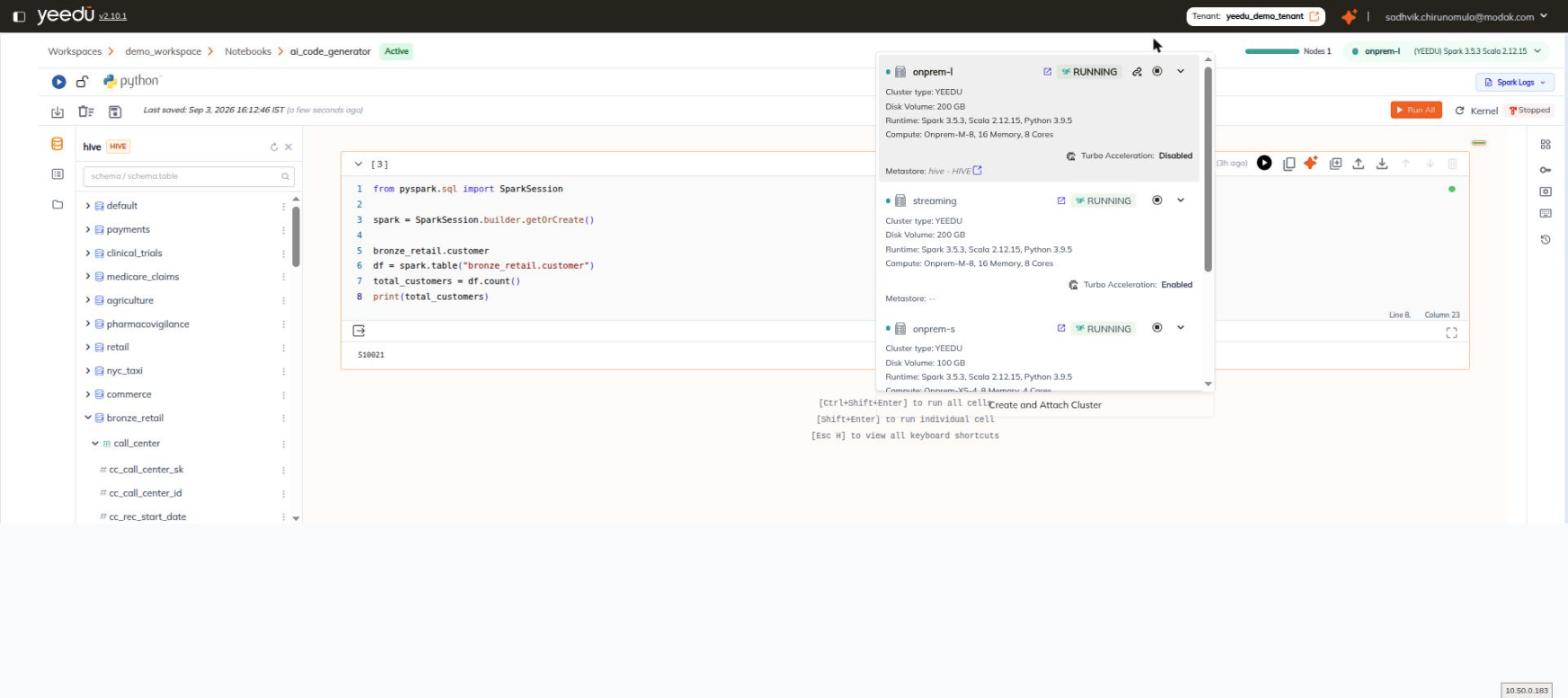
Card Header
The card header holds a status dot, the cluster icon, the cluster name, an open-in-new icon, the status badge (for example RUNNING), the action icons, and a chevron that expands the card body.
Icon Tooltips
| Icon | Tooltip |
|---|---|
| Cluster icon | Min Instances: <n> / Max Instances: <n> / Instance Size: <n> |
| Chain icon (shown on the attached cluster only) | Detach cluster |
| ◉ icon | Stop |
| Turbo icon | Enable turbo |
Expanded Card Body
The expanded body lists, in order:
| Field | Example |
|---|---|
| Cluster type | YEEDU |
| Disk Volume | 200 GB |
| Runtime | Spark 3.5.3, Scala 2.12.15, Python 3.9.5 |
| Compute | Onprem-M-8, 16 Memory, 8 Cores |
| Turbo Acceleration | Enabled or Disabled |
| Metastore | <name> - <TYPE> with a link icon, or -- when none is attached |
Footer
The dropdown footer carries a Create and Attach Cluster button, which creates a cluster and attaches it to this notebook, so you don't have to leave the editor.
Use the turbo icon on a cluster card to Enable turbo; there's no need to open the cluster configuration page.